

Give page guide
Set up your give page, one step at a time
This guide helps you get your payment links, put them in your give page, and put the page on your website. Big steps. Simple words.
Safety rules first
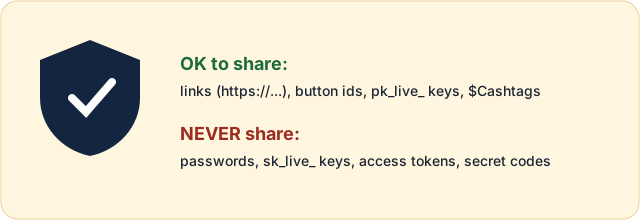
- Never send anyone your password. Not even us.
- Never paste a secret key into your page. Secret keys start with
sk_. They are like the key to your bank. - Only public things go on your page: links that start with https://, button ids, keys that start with
pk_, and $Cashtags. - If you shared a secret by mistake, change it right away in that company's settings.
Part 1. Get your payment links
Stripe: make a Payment Link
Stripe lets people give with a card, Apple Pay or Google Pay.
- 1
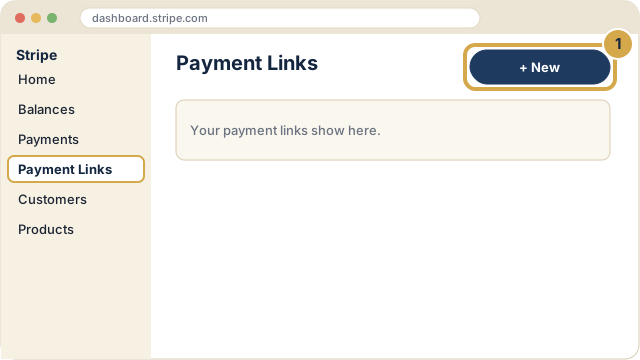
Sign in at dashboard.stripe.com. Click Payment Links. Click + New.
- 2
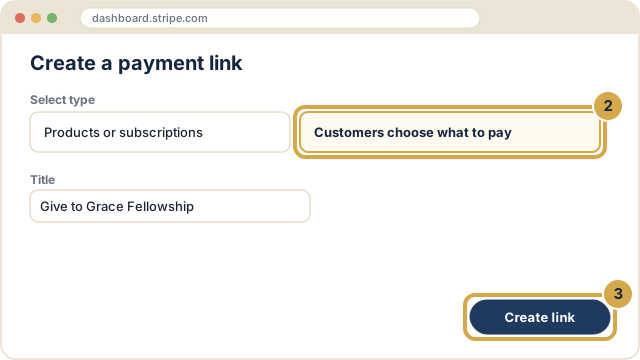
Pick Customers choose what to pay. Type a title, like Give to Grace Fellowship. Click Create link.
- 3
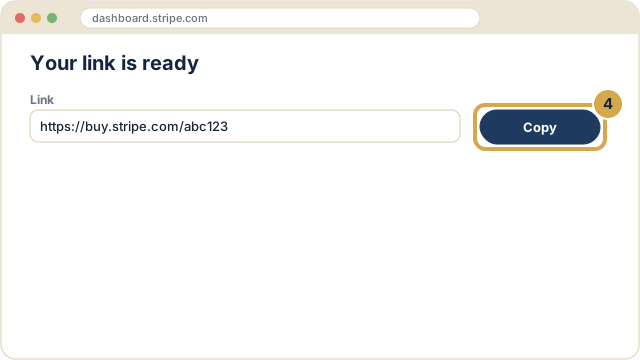
Click Copy. Your link starts with https://buy.stripe.com/. Paste it into your give page.
PayPal: make a Donate button
PayPal lets people give from their PayPal account or a card.
- 1
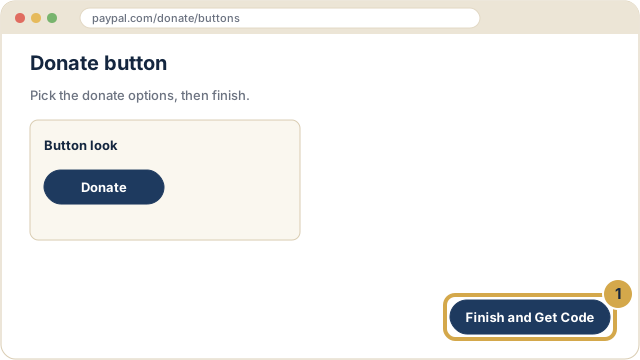
Sign in to your PayPal business account. Go to paypal.com/donate/buttons. Pick your options and click Finish and Get Code.
- 2
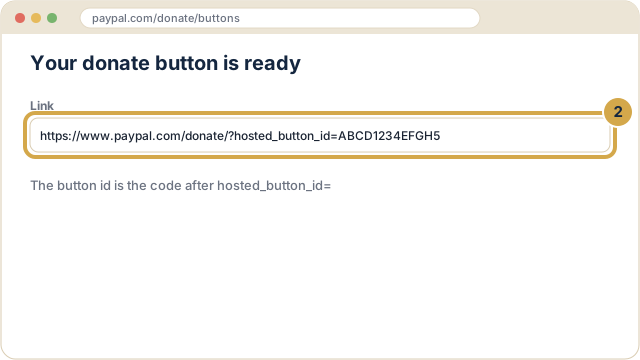
Copy the link. Or copy just the button id: the letters and numbers after hosted_button_id=.
Square: make a payment link
Square lets people give with a card.
- 1
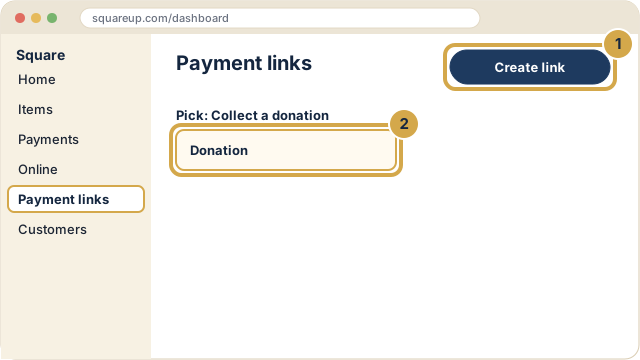
Sign in to Square. Click Online, then Payment links. Click Create link and pick Donation.
- 2
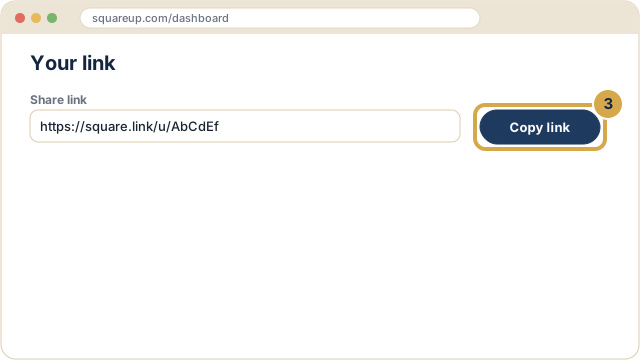
Click Copy link. It starts with https://square.link/.
Zelle and Cash App
These do not need a link. You only need your Zelle email or phone, or your $Cashtag.
- 1
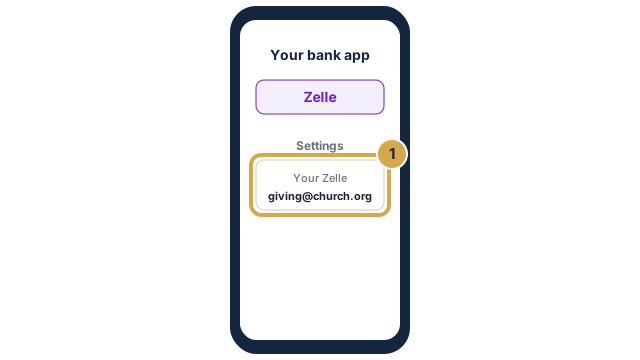
Zelle: open your church's bank app. Find Zelle settings. Copy the email or phone number your church uses for Zelle.
- 2
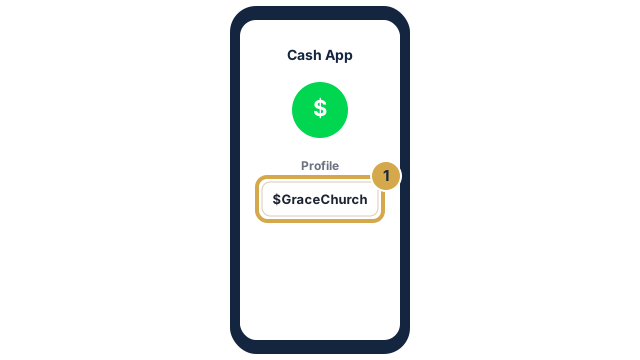
Cash App: open Cash App. Tap your profile. Your $Cashtag is under your name, like $GraceChurch.
- 3
Givelify or Tithe.ly: open your giving app's dashboard and find Share or Giving link. Copy the link.
Part 2. Put your links in your page
Paste your links
Do this if you did not type your links in our form.
- 1
Open the zip file from our email. Find the give-page folder.
- 2
Right-click index.html. Open it with Notepad (Windows) or TextEdit (Mac).
- 3
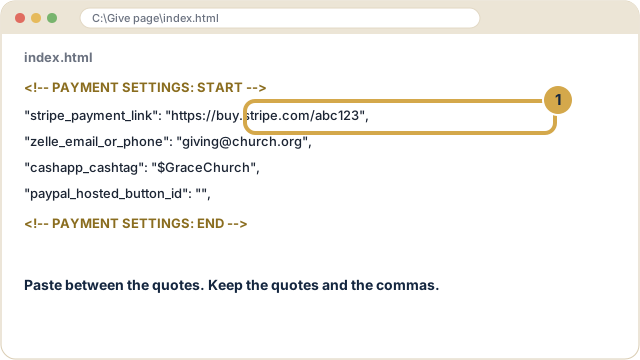
Find the words PAYMENT SETTINGS. Paste each link between the quotes. Keep the quotes and the commas. Save.
- 4
Double-click index.html to see your page. Pick an amount and a way to give to try it.
Part 3. Put the page on your website
cPanel File Manager (and WordPress on your own hosting)
Use this if your hosting has cPanel. Many WordPress sites do.
- 1
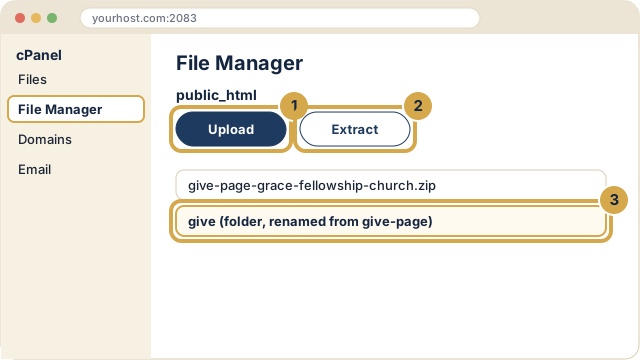
Sign in to your hosting. Open File Manager. Open the public_html folder.
- 2
Click Upload and pick the zip file. Then click the zip and click Extract.
- 3
Rename the new give-page folder to give. Now your page is at yourchurch.org/give/.
WordPress: show it inside a page
Do Part 3 above first, so the page is at yourchurch.org/give/. Or simply add a menu link to it.
- 1
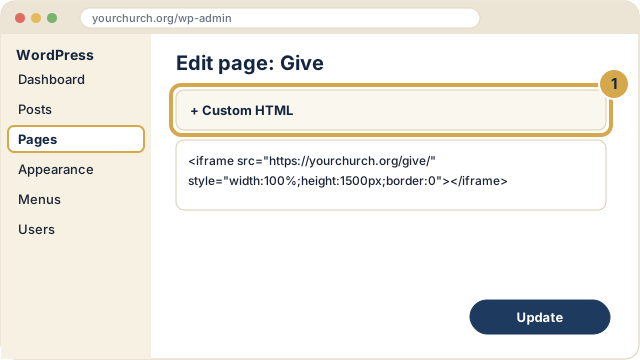
Open Pages and make a page called Give. Add a Custom HTML block.
- 2
Paste this, with your own address:
<iframe src="https://yourchurch.org/give/" style="width:100%;height:1500px;border:0"></iframe>. Click Update.
Wix and Squarespace
Wix and Squarespace cannot hold a folder of files. So the page lives on a free host, and your site shows it.
- 1
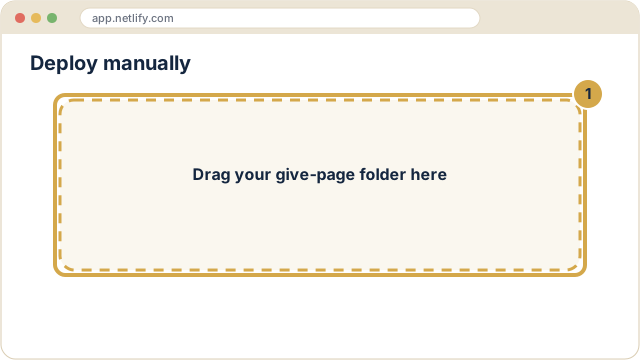
Make a free account at app.netlify.com. Choose Deploy manually and drag in your give-page folder. Copy the address it gives you.
- 2
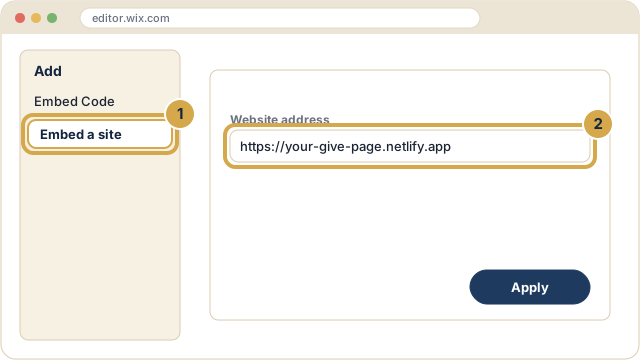
Wix: in the Editor click Add, then Embed Code, then Embed a site. Paste the address. Click Apply.
- 3
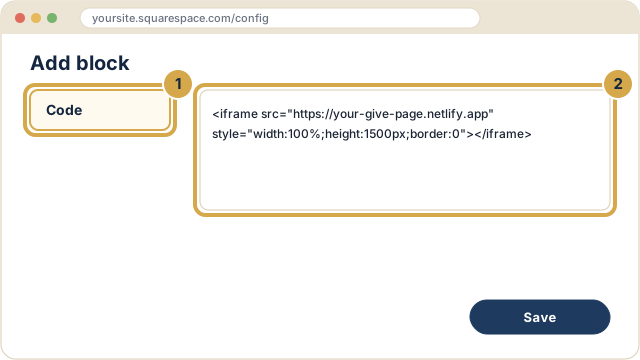
Squarespace: edit a page, add a Code block, and paste the iframe line from the WordPress steps with your Netlify address. Save.
Part 4. Let us do it for you ($25)
Invite us as a user
Pay at 508ministry.com/give/install. Then invite our email: outreach@508ministry.com. You can remove us when we are done.
- 1
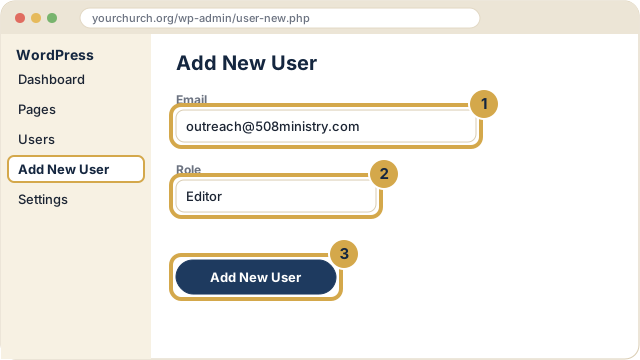
WordPress: go to Users, then Add New User. Type our email. Pick the role Editor (or Administrator if your host needs it). Click Add New User.
- 2
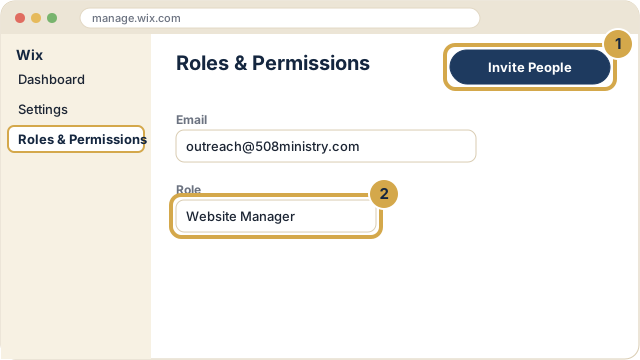
Wix: go to Settings, then Roles & Permissions. Click Invite People. Type our email. Pick Website Manager.
- 3
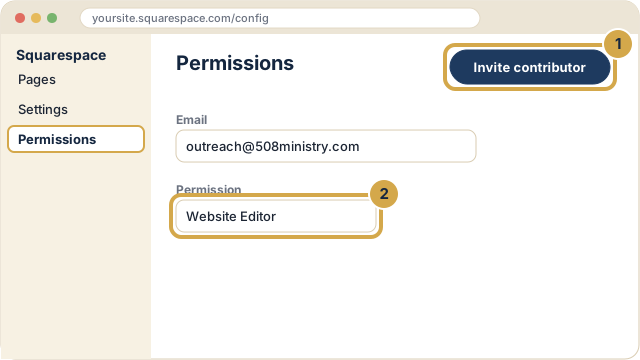
Squarespace: go to Settings, then Permissions. Click Invite contributor. Type our email. Pick Website Editor.
- 4
GoDaddy, Webflow or cPanel hosting: look for Users, Collaborators or Account access, and invite our email the same way.
- 5
Then fill in the form at 508ministry.com/give/install. We email you when your page is up.
Want us to do it?
We put your give page on your website for $25.
See the install serviceGet your free page